
First Steps
Sign Up
Before you can start to use APIs you need to have a registered account. For this you need an active Azure AD Account in Puma Tenant. Visit the Sign In, use the "Azure Active Directory" Button, login with your Azure AD Account and complete the sign up by confirming your name, lastname and E-Mail address.
Products
As soon as you have your Account set up and are logged in, you can see all the Products that are available. You can check all available Products under Products.
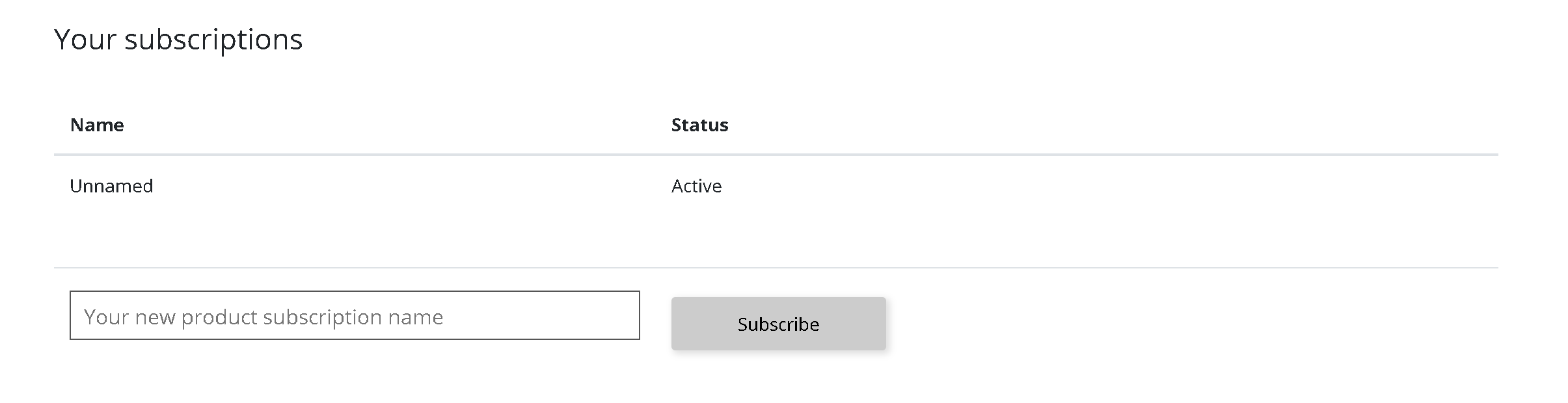
Use the API Explorer
To use the API simply go to "APIs" and search for your desired API. Once you click on said API, you will get to a view similar like this:
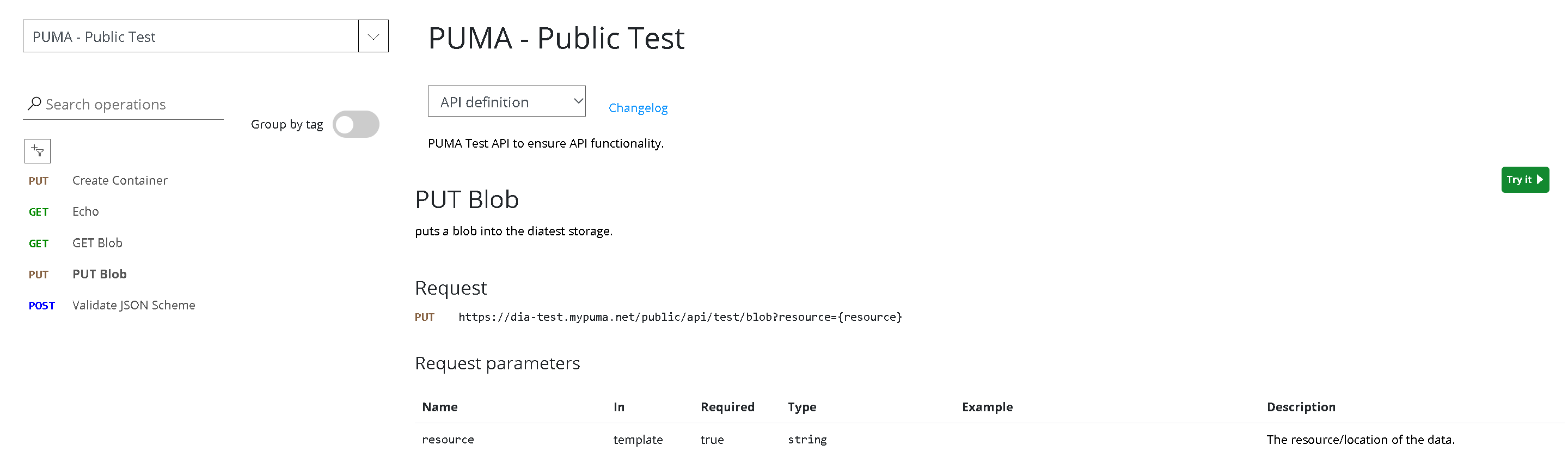
In this view you can see all Operations that are available for an API. You also have the possibility to group the operations by tag. The Page contains various information about the request. You have all the input parameters, so the HTTP Method, the HTTP Headers, Template Parameters, Query Parameters and the Request body. For the request body you get both an example of the request that you can use to test the behavior of the API and also a JSON schema that you can utilize in your own applications:
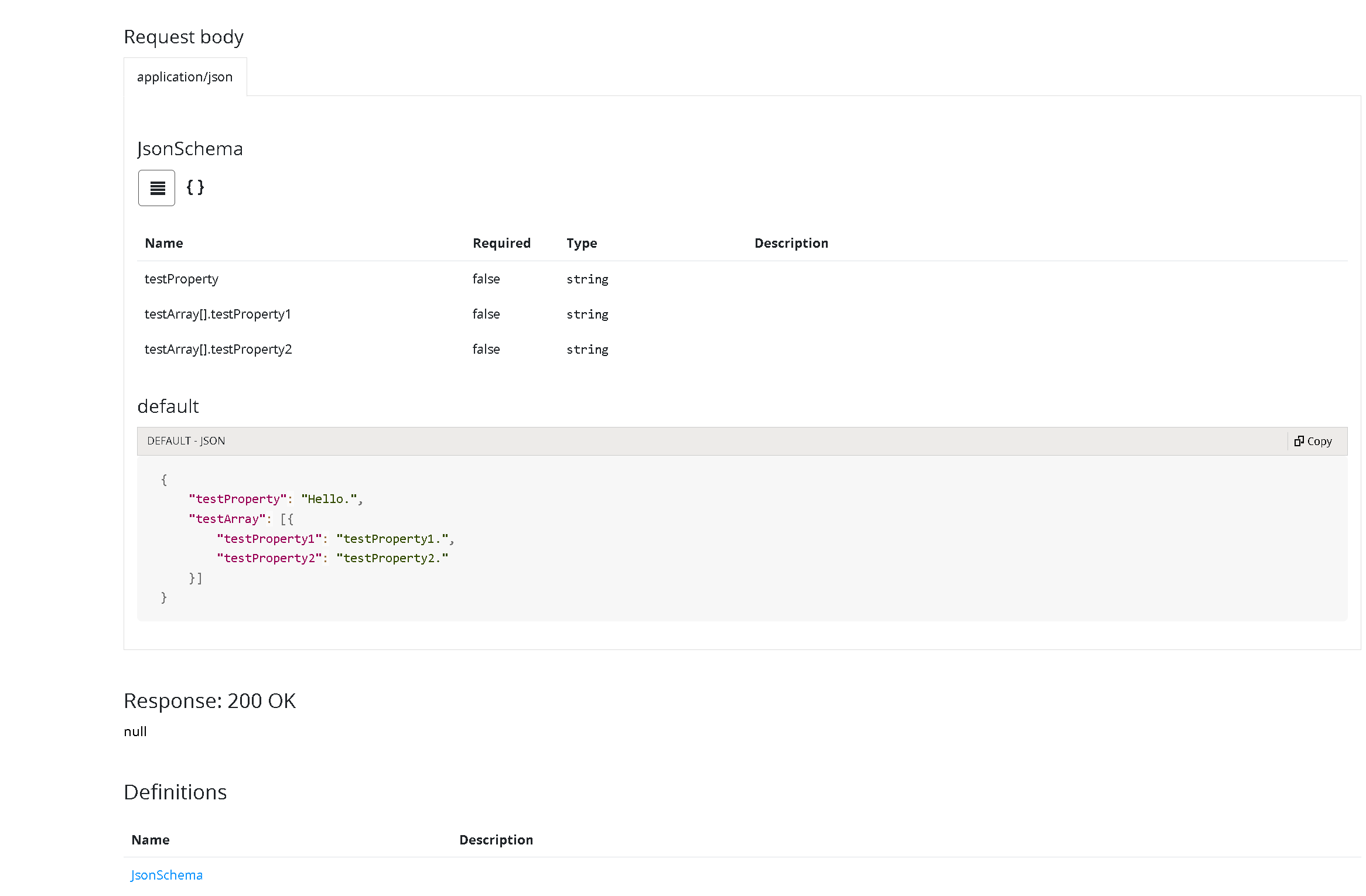
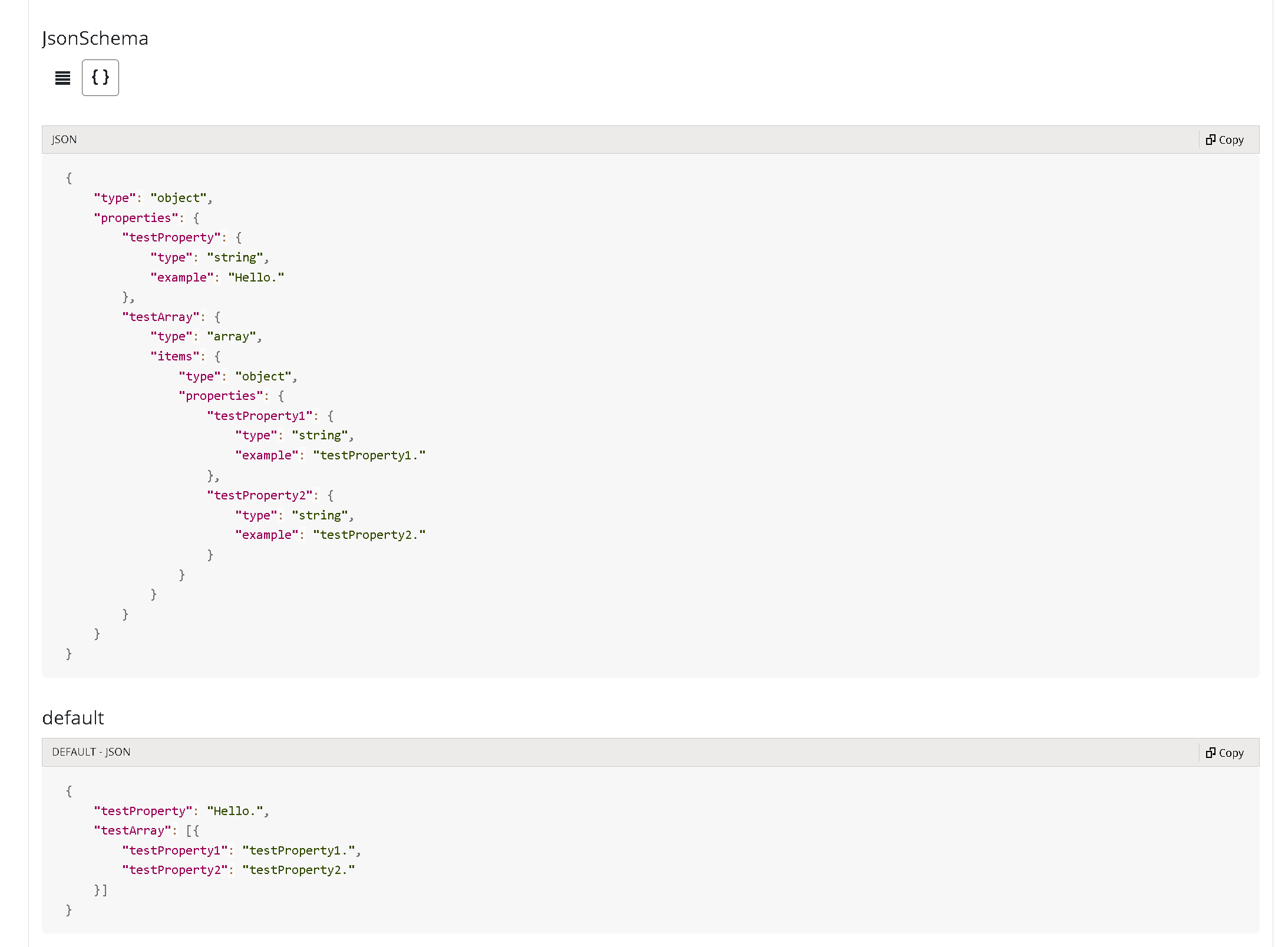
By clicking on the little brackets {} under "JsonSchema" you will get the full json schema:
Test the API
To test an API you need access to the APIs. Please read up in the Authentication section of our guide on how to get Access and how to test the APIs with the help of the developer portal.
Support and Help
If you have troubles with PUMA API Portal or API Management, please reach out to api-portal@puma.com for further support.