
Authentication
PUMA APIs exposed through API Management uses OAuth2 Client Credential Flow as Authentication Method. The User uses ClientID and a Secret to obtain a short-living JWT Token which is then used in all further HTTP Request to authenticate.
The token based authentication is a two step authentication based on OAuth 2 protocol. The calling party which is the consumer of the API (bearer), needs to take two steps to properly establish connection to API Management portal to be authenticated by portal to use requested API call:
Fetch the bearer token from identity provider – in our case it is Azure Active Directory (AAD) B2B identity provider.
Include the token in all HTTP Requests directed against the API endpoints.
The token provided by AAD identity provider has limited validity time. The validity time is included in the response when obtaining the token. Is is a good practice to fetch a new token in the middle of validity time.
If the application has no possibility to cache and reuse token it is advised to request a new token every time a REST API call is made. Even better practice is to use Microsoft provided MSAL library, see: https://learn.microsoft.com/en-us/azure/active-directory/develop/msal-acquire-cache-tokens.
Application registration – application id.
In order to use the APIs offered in this portal you will need to request an application registry by sending an email to: bi-dbas@puma.com.
When the application registration was successful you will receive three vital information that are needed for the authentication process.
Application registration contains:
Application id (client id)
Secret for that application id
Tenant id under which application has been registered.
Authentication process using Developer Portal
Step 1 - fetch the token from AAD identity provider
First we need to fetch the token from the AAD provider because it has to be enclosed in all the future calls. Depending on your operating system we offer two scripts to do this more easily.
The general process is to do a HTTP POST Request to this endpoint:
https://login.microsoftonline.com/{tenant}/oauth2/v2.0/token
In the HTTP body of the request set the content type to: application/x-www-form-urlencoded and inside body following parameters have to be set:
client_id={application id}
client_secret={secret of application id}
scope={application id}/.default
grant_type=client_credentials
For Windows Users following PowerShell Script can be used:
$CLIENT_ID="some-client-id"$CLIENT_SECRET="some-secret"$TENANT_ID="some-tenant-id"
$RESPONSE=Invoke-WebRequest -Method Post -Uri "https://login.microsoftonline.com/$TENANT_ID/oauth2/v2.0/token" -Body "grant_type=client_credentials&client_id=$CLIENT_ID&client_secret=$CLIENT_SECRET&scope=$APP"echo $RESPONSE.content
For Linux Users following Bash Script can be used:
CLIENT_ID=some-client-idCLIENT_SECRET=some-secretTENANT_ID=some-tenant-idAPP="$CLIENT_ID/.default"curl -X POST --url "https://login.microsoftonline.com/$TENANT_ID/oauth2/v2.0/token" \-H "Content-Type: application/x-www-form-urlencoded" \-d "grant_type=client_credentials&client_id=$CLIENT_ID&client_secret=$CLIENT_SECRET&scope=$APP"
Please remember to properly form request body, typically, when you use some general-purpose language, like C#, Python, Java, you can use Microsoft provided MSAL library to obtain access token (see: https://learn.microsoft.com/en-us/azure/active-directory/develop/msal-acquire-cache-tokens ).
Positive response from above call, HTTP response code equals to 200, responds with JSON body which contains token which has to be used in second, and subsequent calls to REST API on API Management – until token is valid. Sample response:
{ "token_type": "Bearer", "expires_in": 3599, "access_token": "nOtReaDableStuPIDstring..."}
You need to grab “token_type” and “access_token” from response and use it in the next step. Responded “expires” contains number of seconds, how long the token will be valid.
Step 2 – Use the obtained token to access the specific API
First in the Developer Portal use the top right menu to click on APIs and look for the API you want to use.
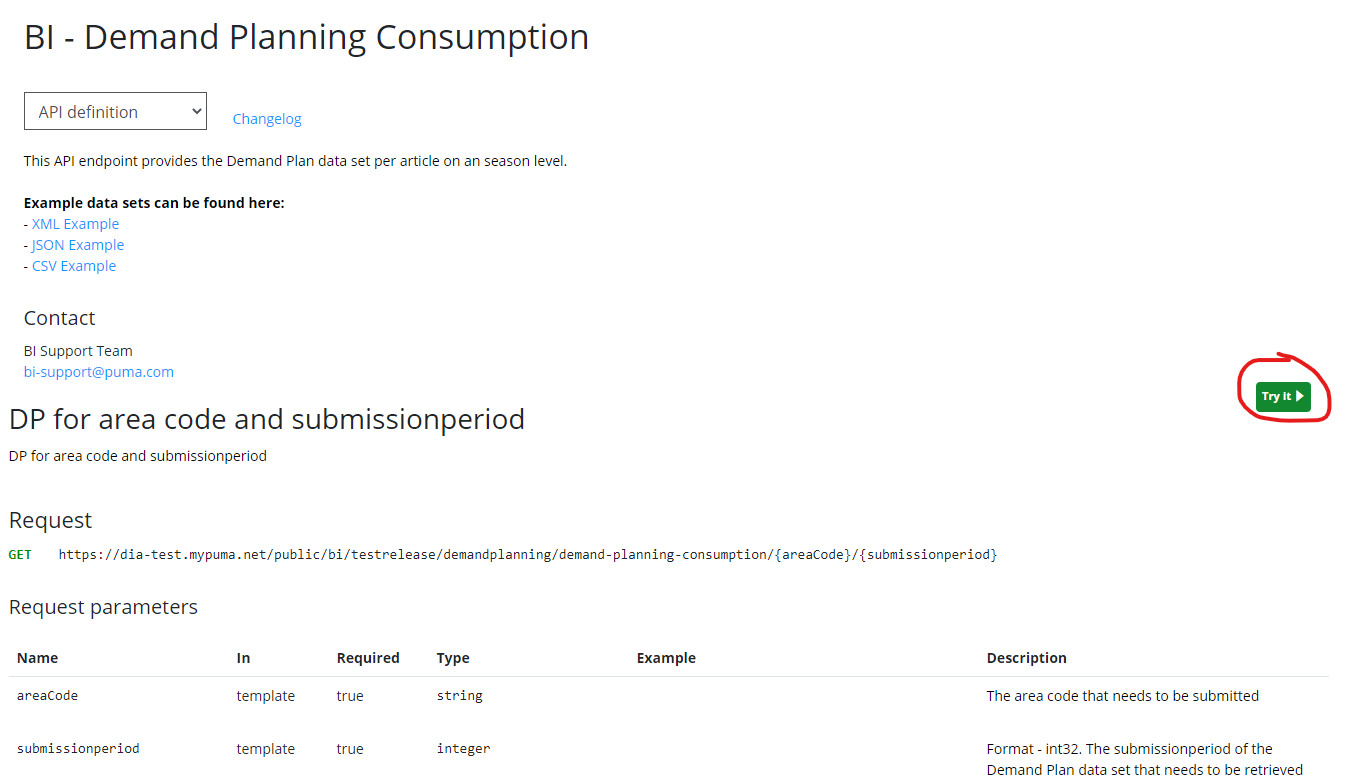
Now select the desired API in the list. On the right-hand-side you will see the list of operations the API supports. Click on the green "try it" button on the right-hand-side. A formular opens where you can set up the desired parameters the Operation is offering. After configuring this go to the "Headers" section.
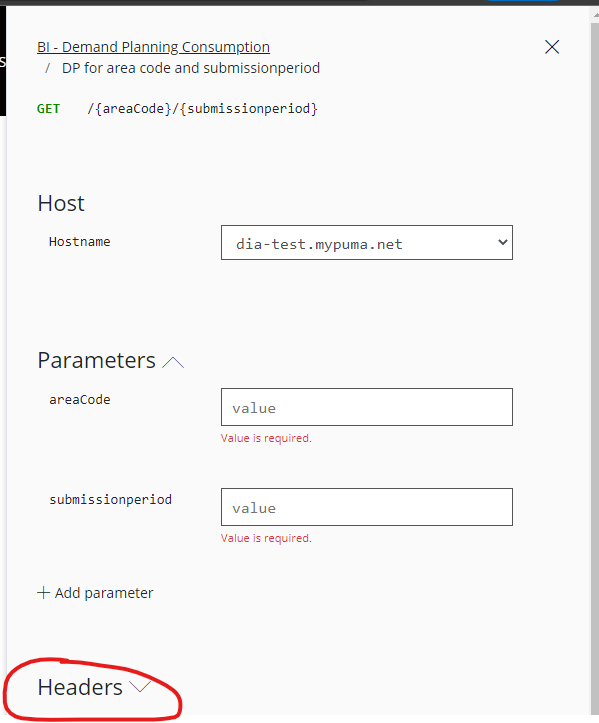
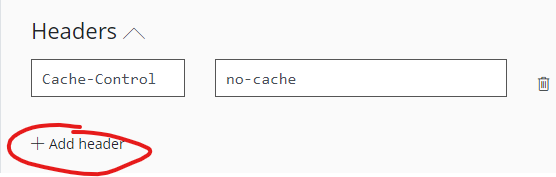
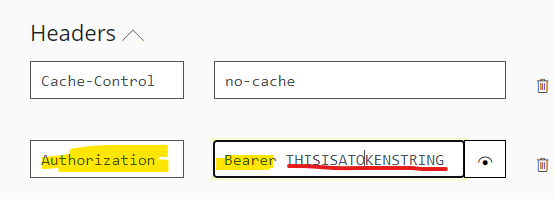
Add a new header entry by clicking on the plus sign. For "name" chose "Authorization" and for value use "Bearer [ACCESS_TOKEN]"
Now at the bottom of the formular you can use the "send" button to execute the request. The result will be presented in the bottom section of the form.
The form can also help you to generate scripts in different programming languages by changing the type of request from "HTTP" to a desired programming language
Authentication process for Applications
For the application that eventually will access the API the steps from above are the same. The application needs to contact the token endpoint:
https://login.microsoftonline.com/{tenant}/oauth2/v2.0/token
Use a POST Request with body set to content type to: application/x-www-form-urlencoded and inside body following parameters have to be set:
client_id={CLIENT_ID}
client_secret={CLIENT_SECRET}
scope={CLIENT_ID}/.default
grant_type=client_credentials
The Response will contain the token that is then to be added to all further HTTP Requests that are directed to the API endpoint. All HTTP Requests need to have following Key Value pair in the header:
Authorization: Bearer TOKEN